

StudyBench is a free tool for Windows and Mac that turns your slides, PDFs, notes and lecture recordings into summaries, practice questions and exam simulations, without sending anything to the cloud unless you choose to.
The problem
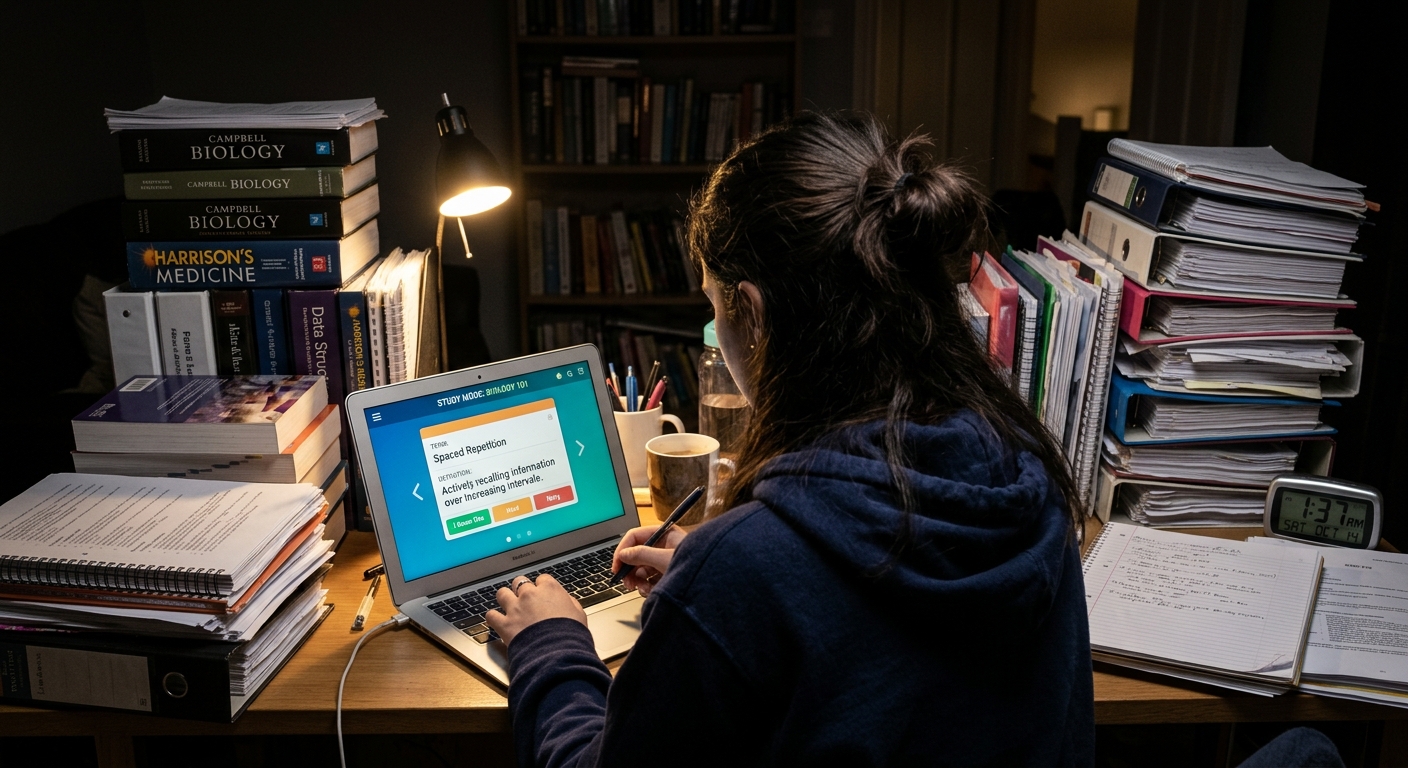
Whether you are a student before finals, a professional working toward a certification, or someone learning a new field, the situation is the same: slides, handouts, PDFs, books and lecture recordings pile up. I started this for my own course season, but nothing in it is specific to one subject or profession. Dozens of hours of material in pptx, docx, pdf, image and audio files is the normal case.
Reading it all again is not studying. What works is retrieving knowledge from memory, spaced over time, under exam-like pressure. I wanted one tool that does the tedious preparation and leaves me the part that actually builds memory.
What it does: seven steps
One topic per subject (for example “Organic chemistry”, “Project management” or “Tax law”). Every topic goes through the same seven steps.
Step | What happens |
|---|---|
1. Inventory | Upload files; the tool sorts them, ignores unsupported types, and lets you tick which ones count (“Use”). |
2. Transcribe | Lecture recordings become text with timestamps, using Whisper on your own computer. |
3. Interpret | Summaries in three depths (quick, standard, detailed), made section by section so a 200-page PDF is covered fully. |
4. Practice | Flashcards, multiple choice, exam simulation, oral exam with a “jury”, free recall, teach-it, mnemonics, weak-point list. |
5. Chat | Ask questions; answers come from your own material and cite the passage they used. |
6. Recommend | Real literature from PubMed, OpenAlex and Open Library, in German, English or French. Nothing is invented from the AI’s memory. |
7. Present | Pick content, get an outline and a PowerPoint file. |
The interface is in English; the content can be German, English or French.
Learning methods built in
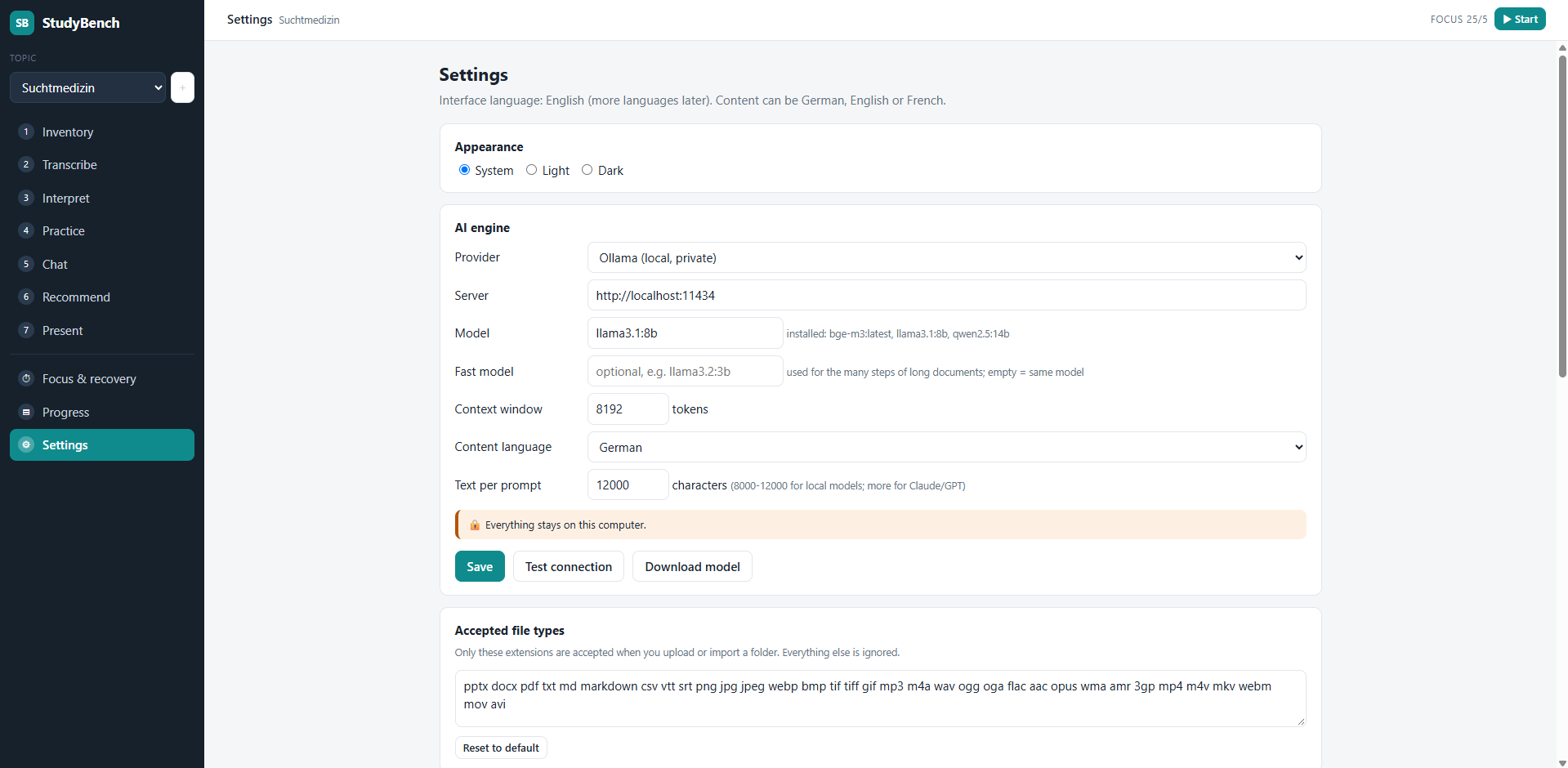
- Spaced repetition: the interval grows after a correct answer and shrinks after a wrong one; weak items come back sooner.
- Interleaving: questions from different documents are mixed instead of blocked.
- Active recall: a pause where you close the notes and write down what you remember, then compare.
- Exam conditions: a timer, an expected score, and jury-style follow-up questions.
- Teach it: explain the topic aloud as if to a classmate or colleague, then check the gaps.
- Elaboration and mnemonics: why / how / what-if questions, and suggested acronyms.
- Focus timer: 25 minutes of work, 5 minutes of break, with a recall pause; plus short tips on sleep, food and hydration.
Privacy: local first
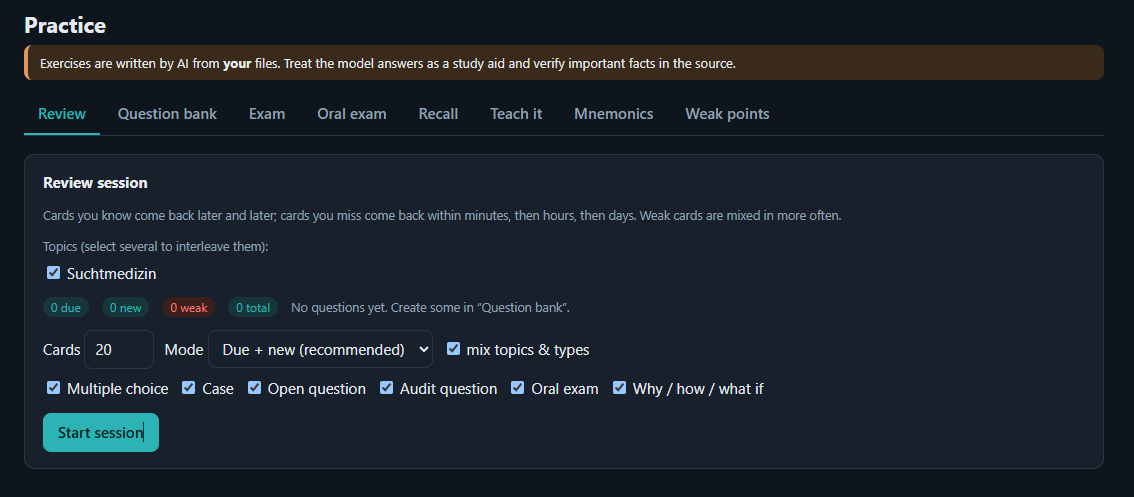
By default the AI runs on your computer through Ollama, and transcription runs locally too. Your files stay in a folder next to the program.
The AI is swappable. If you enter an API key in Settings, you can use Claude or OpenAI instead. In that case the text of your material is sent to that provider. For public course material that is usually fine; for confidential material such as client data, patient information or internal company documents it is not. Keep confidential or personal data out of a cloud AI, and check your school’s or employer’s rules first.
How it was built
I am a physician, not a software developer, and you do not need to be one either. I described what I needed and built StudyBench together with Claude, in rounds: Claude wrote and tested the code, I tried it on my real course files and reported what broke. Python, Flask and SQLite, a plain browser interface, no cloud service.
My own test files found problems a clean demo would not have:
- A 216-page PDF took about an hour to summarise and came out shorter than a page. The fix was to summarise section by section, cache every section, and show an estimated time.
- Transcription failed on an m4a file because of an audio-library version mismatch, and later on a missing GPU library (
cublas64_12.dll). The tool now decodes audio itself and falls back to the processor automatically. - Literature suggestions were off-topic. The tool now asks the AI only for precise search phrases, queries the open databases, and drops results that do not match the topic.
- Two local tools wanted the same web address. StudyBench now has its own port, 8731, so it can run next to other local apps.
Try it on Windows or Mac
Windows
- Download the project from GitHub (green Code button, then Download ZIP) and unzip it.
- Double-click
run.bat. The first start installs what is missing: Python packages, Ollama for the local AI, and Tesseract for scanned PDFs. - The browser opens at
http://127.0.0.1:8731. The AI model and the speech model download in the background; progress shows bottom left. The first start needs internet and patience, because the models are several gigabytes. - Create a topic, drop in your files, and work through the steps from top to bottom.
Mac (Apple Silicon and Intel)
- Download and unzip the project the same way.
- Double-click
run.command. If macOS says it is from an unidentified developer, right-click the file, choose Open, then Open again. - It sets up its own Python environment and, if Homebrew is installed, installs Ollama and Tesseract. Without Homebrew it tells you what to install by hand. The app opens at the same address.
- Transcription runs on the processor on a Mac, so long recordings take a while; a smaller speech model in Settings helps.
Linux works with ./run.sh, and every system can start it manually with Python (see the README).
One set of data on every computer
If you use a Windows PC and a Mac, or a desktop and a laptop, you do not want to start from scratch on each. StudyBench keeps everything (topics, files, transcripts, summaries, progress) in one data folder, and you can put that folder in OneDrive, Google Drive, iCloud Drive or Dropbox.
- In Settings, open Data location and click Move my data here next to your drive.
- On the other computer, install StudyBench. If the drive already holds your data, it connects to it by itself.
- Use one computer at a time and let the drive finish syncing before you switch. StudyBench warns you if another computer is using the folder, and keeps a daily backup of the database.
- API keys for cloud AIs are never written to the shared folder; you enter them once per computer.
Limits and what comes next
- AI summaries and answers can be wrong. Treat them as a study aid and check against the original slides and guidelines before an exam.
- Quality depends on the model: a small local model is weaker than Claude or GPT, but it keeps everything on your machine.
- Transcription runs on the processor unless you have a supported NVIDIA graphics card; a long lecture can take a while.
- The tool is a personal project and has been tested mostly in a development sandbox, so expect rough edges on other computers. Issues and suggestions are welcome on GitHub.
- Windows is the best-tested system. The Mac and Linux launchers are new, so please report problems on GitHub.
This is a study aid, not professional advice, and it is not affiliated with any exam body or course provider.